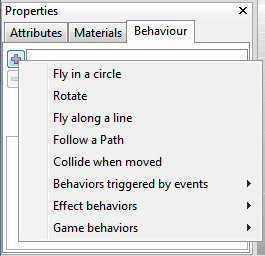
|
Fly in a circle
|
Lets the 3D scene node move in a circle. The following parameters are supported:
- Center: 3D Coordinate of the center of the circle
- Radius: Value defining the size of the circle
- Speed: A value defining the speed of the movement. Higher values = faster movement.
- Direction: If you don't want the circle to be horizontally, speciy another vector here.
|
|
Rotate
|
Lets a 3D scene node rotate around itself. The following parameters are supported:
- Rotation: 3 values defining the rotation speed for each axis. The bigger these values are the faster the 3D scene node is rotated around this axix.
|
|
Fly along a line
|
Makes a 3D scene node fly along a straight line. The following parameters are supported:
- Start: 3D position defining the start position of the line
- End: 3D position defining the end position of the line
- TimeForWay: Amount of time in milliseconds which the 3D scene node should need to move along the full line. A value of for example 10000 means 10 seconds.
- Loop: Check it for letting the node repeat the movement along the line, and check not for let it
move only once.
|
|
Follow a path
|
Makes a 3D scene node follow a 3d path consisting of multiple points in 3d. You can define a path
simply by creating a path object in the editor (for example use Edit -> Insert -> Create a path).
The following parameters are supported by this behavior:
- PathToFollow: The 3D path you want the 3d Object to follow. Select a path from a list
of existing paths in the current scene.
- TimeNeeded: Amount of time in milliseconds which the 3D scene node should need to move along the full path. A value of for example 10000 means 10 seconds.
- LookIntoMovementDirection: While moving, let the scene node face into the movement direction, if checked.
- AdditionalRotation: If LookIntoMovementDirection is checked, this can be used to define an additional rotation which is used to rotate the scene node into the correct looking direction.
- TimeDisplacement:Time in milliseconds used to displace the movement along the path in relation
to the start of the scene.
|
|
Collide When Moved
|
This behavior makes it possible to move 3D objects within a 3D world without letting them go through walls.
For example simply attach this behavior to the active camera, and when moving it, it won't be possible
to go through walls anymore, where 'walls' are 3D objects which have the 'collision' attribute checked in their
property window. See collision for further information about this.
The following parameters are supported:
- Size: Three values defining the size of the ellipsoid around the 3D object. This is the object which
actually collides with the 3D world, so it should be made big enough to fit around the 3D object.
- RelativePosition: This is basically the position of the eyes in the ellipsoid, the relative position of the
ellipsoid around the 3D object.
- AffectedByGravity: If checked, the gravity set for this scene is applied. You can change the gravity when selecting the root node of the scene in the SceneGraph Explorer.
- EnableInclination: This is useful for if you are using collision for a vehicle: If checked, the object were this behavior is
used on will then correctly align with slopes on the ground.
Sometimes, it is possible to get stuck in the geometry when moving using this behavior.
Always place the 3D object at a position so that the yellow ellipsoid isn't colliding with a wall in
the beginning, so that it is not stuck. If the 3d object gets stuck during movement, then the
problem might be the 3d mesh of the world: One needs to be a bit careful when modelling the static geometry the 3d object
collides against. The geometry should be closed, and there should not be any one sided polygons sticking out
anywhere, those are usually the places where one gets stuck.
Also, if the points of vertices which should be together are not exactly at the same point could cause problems.
If the used 3d modelling software supports a feature like 'Merge Points' to make neighbour vertices be
exactly at the same place, it is recommended to do this, it also usually helps.
Additionally, you can use the colSmallDistance variable to change the 'small distance'
to fit your collision system better.
|
|
Model Viewer Camera Style Controlled
|
A behavior which can only be used together with cameras: It makes the camera it is attached to behave like
a 3D model viewer. The camera is rotated by the user (by moving the mouse) around a circle around the target of the camera.
The following parameters are supported:
- RotateSpeed: Speed of the rotation of the camera if the user moves it
- Radius: Radius of the circle around the target
- VerticalMovementAllowed: Defines if the camera can be moved up and down as well.
|
|
First Person Shooter Style Controlled
|
A behavior which can only be used together with cameras: It makes the camera it is attached to behave like
the camera in a first person shooter game. The camera is moved by the user (by moving the mouse and pressing keys on the keyboard)
The following parameters are supported:
- MoveSpeed: Speed the camera is moving at when the cursor keys or WASD is pressed
- RotateSpeed: Speed the camera is turned around with when the mouse is moved
- JumpSpeed: Speed to Jump when space is pressed. Set to 0 to disable this feature. Only works when the object also has a 'Collide When Moved' behavior attached to it, with gravity. The jump height depends on the JumpSpeed and the gravity vector length.
- MaxVerticalAngle: The maximal angle the camera is able to look up and down
- CanFly: Check this to make it possible to also move up and down (=flying) instead of just moving horizontally.
- LookOnlyWhenMouseDown: There is a small difference between WebGL/Flash and Windows/MacOS applications in CopperCube:
The mouse cannot be hidden and moved in the WebGL and Flash target, so the camera will only turn around when the mouse is
down, in the Windows and Mac OS target, this is not the case. By checking this, the camera will behave also in the
Windows / Mac OS X target like in WebGL and Flash.
- SmoothMoving: When enabled, this lets the movement of the camera not suddenly stop when the user lefts up the movement key. The camera moves a bit further, making the movement feel more smoother. When enabled, there is also a parameter named 'MsToSlowDown', where you can specify how many milli seconds this movement should last.
- DisableClippingForChildNodes: This is only visible if you have 3d models attached as children of the camera. When enabled, this prevents child models of the camera
to clip through wall or other objects.
|
|
When Clicked do something
|
Triggers a user defineable action when the user clicks on the 3D object this behavior is attached to.
The following parameters are supported:
- BoundingBoxTestOnly: When the 3D node is clicked, only a bounding box collision test is
performed instead of testing each polygon of the 3D model with the click. This is faster but
not very pecise.
- NoClickWhenOccluded: If this is checked (default), when the 3D object is behind a polygon of another 3D object and the
user clicks it, nothing happens.
- Action: One or more actions which should happen when the user clicks on this object.
|
|
When Cursor Moved Over do something
|
Triggers a user defineable action when the user moves the mouse cursor over the 3D object this behavior is attached to.
The following parameters are supported:
- BoundingBoxTestOnly: When cursor is moved over the 3D node, only a bounding box collision test is
performed instead of testing each polygon of the 3D model. This is faster but
not very pecise.
- NoClickWhenOccluded: If this is checked (default), when the 3D object is behind a polygon of another 3D object and the
user moves the cursor over it it, nothing happens.
- ActionOnEnterMouse: One or more actions which should happen when the user moves the mouse over this object.
- ActionOnLeaveMouse: One or more actions which should happen when the user moves the mouse away again from this object.
|
|
On proximity do something
|
Triggers a user defineable action when the active camera or another 3D object moves close to the 3D object this behavior is attached to.
The following parameters are supported:
- TestArea: The area which triggers if an object is near to another one. Usually, a sphere is used for testing, but for more exact results, you can set this also to 'box'.
- Distance / Size: Distance the other 3D object needs to move to this 3D object
- Near to what: Defines to which scene node the distance should be measured
- Triggered when: Set to 'Enters Radius' when the action should be triggered when the 3D object enters the
defined radius or set to 'Leaves Radius' when the action should be triggered when the 3D object leaves the
radius again.
- Action: One or more actions which should happen when the the radius is entered or left.
|
|
Every few seconds do something
|
A behavior which executes an action all the time, with a definable interval. Usually, this is also called a 'Timer'.
The following parameters are supported:
- IntervalMS: Milliseconds between each triggering of the action. 5000 means every 5 seconds.
- Action: Action which should be triggered
|
|
Animate a texture
|
Changes the texture of the 3D object this behavior is attached to.
The following parameters are supported:
- TimePerFrame: Amount of time in milliseconds after which the next texture is changed
- Change which material: You can define here if all the textures of the 3d Object will be changed
or just the material with a specific index
- Texture: The texture the material should be changed to. If there is a texture selected, a nother
slot for selecting another texture will be created. Delete the content of this slot to delete the slot.
|
|
Game Actor with Health
|
Makes it possible to create controlled ingame actors, like Monsters, Soldiers etc,
walking around in the environment. The Game Actor can patrol a certain area and
attack specific targets. It has an amount of health and the will 'die' when the health
has reached 0, which can be achieved for example using the new 'shoot'
action. This is quite useful for prototyping games.
The game actor is supposed to be used with animated mesh scene nodes, but works of course
with every other scene node.
The following parameters are supported:
- Mode: Supports the following values:
'This is the player': doesn't do anything special except that the player
now has an amount of health, actions and tags and is able to be attacked by other actors. You can attach this also to the
active camera to make the AI actors attack the camera.
'Stand still': Lets an actor stand where it was placed in the editor and wait for
an attackable target to come into its ActivationRadius. Then it will attack the target, and possibly also
move closer.
'Randomly Patrol': Randomly walks around in a radius around the location where the actor was placed
in the editor. Attacks enemies when they are close.
'Follow a Path': Like randomly patrol, but tries to follow the node points of a specified path.
- PatrolRadius: Only available when the Mode is 'Randomly Patrol'. Defines the radius in which the actor
will move around randomly.
- PatrolWaitTimeMs: Only available when the Mode is 'Randomly Patrol' or 'Follow Path'. Specifies the amount of milliseconds the AI will wait after each patrol or path point (including the time it needed to reach that point).
- Health: A value which indicates the actors health. Will be reduced when attacked by the 'Damage' amount of the
weapon attacking. When reached 0, the 'Die' animation is played and the ActionOnDie action is triggered.
- MovementSpeed: Speed the actor can move around with.
- Tags: List of Tags the actor can be associated with. Set it for example to "friendly, teamred" or similar. Will be used
by other actors to check if this actor is a friend or enemy. See 'AttacksActorsWithTags'.
- AttacksActorsWithTags: Set it to 'enemy' or similar. Attacks any actor which has a 'Tags' section with the text set in here.
- CanFly: Check to make it possible for the actor to fly.
- ActivationRadius: The actor will activate and start attacking when an enemy comes as close as the value set in here.
When activated, the ActionOnActivate is triggered.
- StandAnimation: If attached to a animated mesh, this specifies the animation played when standing.
- WalkAnimatino: If attached to a animated mesh, this specifies the animation played when walking.
- DieAnimation: If attached to a animated mesh, this specifies the animation played when dying.
- AttackAnimation: If attached to a animated mesh, this specifies the animation played when attacking. The ActionOnAttack action
is executed exactly in the middle of this animation.
- ActionOnAttack: An action to be executed when the actor attacks. Usually, this should be set to a 'Shoot' action. Be sure to set the weapon
range in the shoot action to something useful because the actor will use this value to move to its target into the range of his weapon.
- ActionOnActivate: An action to be executed when the actor notices an enemy for the first time. Might be set to something like playing a sound or similar.
- ActionOnHit: An action to be executed if this actor is hit by some weapon. May be used to play a sound.
- ActionOnDie: An action to be executed when this actor dies.
- AdditionalRottationForLooking: When the actor moves, it automatically looks into the movement direction. If the 3D model used is facing
into another direction as expected by CopperCube, you can use this to specify an additional rotation to compansate for that.
There are special variables available, for quickly accessing the health in the Game Actor. Use for example a variable named #player1.health for getting or changing the variable storing the health of the object with the game actor behavior of a scene node with the name 'player1'. This is useful in combination with the 'Set or change a Variable' action.
Additionally, there is the scripting function ccbAICommand() available, with which you can send commands to the AI.
|
|
3rd Person Camera Style controlled
|
A behavior which can only be used together with cameras: It makes the camera follow an object. When for example linked to an object
which has the bahavior "Object or Person controlled by keyboard", you can create a camera which bahaves similar to third person camera
games like "Tomb Raider".
The following parameters are supported:
- Object to Follow: Select which object is to be followed by the camera
- Follow mode: Select here how the camera should move.
- AdditionalRotationForLooking: If the object you are following is rotated, set an additional rotation in degrees here.
- FollowSmoothingSpeed: How fast the camera should react to movement changes.
- TargetHeight: Additional height added to the camera target position.
- CollidesWithWorld: Check this if the camera should collide against walls, or uncheck if it should be able to move through them.
|
|
Object or Person controlled by keyboard
|
A behavior which makes it possible to control a 3d object by the keyboard input, and also trigger animations, if wanted. Combined with the new
third person camera, it is possible to create actors controlled as in games like Tomb Raider.
The following parameters are supported:
- Move Speed: Movement speed of the object
- Rotate Speed: Rotating speed, when the 'left' or 'right' button is pressed.
- JumpSpeed: Speed to Jump when space is pressed. Set to 0 to disable this feature. Only works when the object also has a 'Collide When Moved' behavior attached to it, with gravity. The jump height depends on the JumpSpeed and the gravity vector length.
- Run Speed: Same as MoveSpeed, but used for running, when the 'shift' key is pressed down. Set to 0 to disable this feature.
- StandAnimation: If attached to a animated mesh, this specifies the animation played when standing.
- WalkAnimation: If attached to a animated mesh, this specifies the animation played when walking.
- RunAnimation: If attached to a animated mesh, this specifies the animation played when running.
- JumpAnimation: If attached to a animated mesh, this specifies the animation played when jumping.
- AdditionalRotationForLooking: If the objectis rotated, set an additional rotation in degrees here to make it correctly face forward.
- DisableWithoutActiveCamera: Check this if the object should not be controlled by keyboard if there is currently
no active 3rd person camera attached to this object.
- UseAcceleration: Check this if the object should need some accleration to get to full speed, and (optionally) should need to slow down before it fully halts. The values in the fields 'Acceleration' and 'Deceleration' then influence how much acceleration and deceleration is needed. Set 'deceleration' to 0 if you want the object to be able to stop immediately and not use any deceleration.
|
|
Before first drawing do something
|
A behavior which can be added to the root of the scene only. This executes all actions added to it once when the scene is shown first. It can be useful to initialize
variables in there, move the positions of some objects, or similar. Check the option 'AlsoOnReload' if you want the behavior to trigger the actions also if the
scene gets reloaded using the 'Restart Scene' action.
|
|
When a key is pressed do something
|
Allows reacting to key events, when for example a key is pressed on the keyboard or the mouse. Also, on Android, you can react
to the android menu key by selecting "App Menu key".
|
|
Object moved by physics engine
|
A behavior which moves an object based on the rules of a simulated 'real' world. When objects with this behavior collide, they inluence each other. Also, objects with the 'Collide when moved' behavior will also collide against these then and be able to move them, roll them over etc.
Note that this behavior only works on targets with an enabled physics engine (which can be done on the Publishing Settings dialog). The Windows .exe and Mac OS X .app target
support this.
The following parameters are supported:
- BodyType: Select the simulated body type for this object, like Box, Sphere, Cylinder, and Capsule.
- Density: The density of the object, together with the size, this defines how heavy or light the object is.
- Size, Radius and Height: Specify the size of the simulated object. You can see the object in the 3D view outlined with yellow lines.
- AdditionalPosition and AdditionalRotation: An additional position and rotation of the simulated object. Set these so that the yellow drawn object covers roughtly the drawn object.
- DoActionOnImpact: Check for triggering actions when the object collides with something. This is useful for example for playing sounds, to make the object feel more real. Use the Action entry to specify your action to be done on impact. Use 'TriggerMaximalEveryMs' to specify a value in milli seconds to specify how often the action is triggered at maximum, and 'MinimalForceToTrigger' to specify an impact value over which the action is only triggered.
|